
How visual cues boost user experience in construction procurement apps

Status that reads in one second
The most valuable thing a procurement app can show a field crew is order status — and it needs to be readable at a glance, not after reading three lines of text.
Color-coded status indicators do this well when they're applied consistently. Green means delivered and confirmed. Amber means in transit. Red means something needs attention: a discrepancy flagged, a delivery not yet confirmed, an invoice that doesn't match. When those indicators appear the same way every time, across every screen, a foreman can open the orders tab and immediately know which items are clear and which ones need a follow-up. They don't have to read the detail. The color tells them.
The owners at JA&M Contractors, a Florida builder of mid-rises and high-rises, single out that color-coded system as one of the things that lets their team read status and make decisions quickly.
That one-second read is the difference between a tool that gets checked regularly and one that gets ignored. Field crews will use an app that gives them fast answers. They won't use one that makes them work to extract information. Research backs this up: 61.5% of users abandon an interface when navigation cues are unclear. In construction procurement, that abandonment means a phone call, a spreadsheet, or a missed confirmation.
The friction of ambiguous interfaces
Most procurement software wasn't designed for the field. It was designed for an office, with the assumption that the person using it has time to navigate menus, read labels carefully, and work through a multi-step process without interruption. That assumption breaks down immediately on a job site.
When buttons are unlabeled or labeled ambiguously, crews hesitate. When status isn't clearly communicated, they call to verify. When an action looks like it might do the wrong thing, they don't tap it and go ask someone instead. Every one of those moments is a failure of the interface to do its job. The cumulative effect is a tool that creates more communication overhead than it eliminates.
Each of those calls also widens the divide between field crews and the office, since someone in purchasing has to stop and answer it.
The field-first design principle that SubBase is built around addresses this directly. The platform was designed by people who spent time on job sites, which means the interface decisions were made with the actual use context in mind: outdoor lighting, limited screen time, users who need to confirm a delivery and get back to work in under a minute.
Interface design is one piece of it; the bigger gain in field operations efficiency comes from requests and confirmations flowing straight into purchasing without a phone call.
What it looks like in practice
A mid-size general contractor in Dallas came to SubBase with an order visibility problem on their mobile app. The question their team asked upfront was whether they'd actually be able to navigate and act in the app from the field. After SubBase introduced color-coded status badges, clear action icons, and real-time confirmation overlays, order-entry errors dropped 38% within the first month. Foremen could confirm delivery status with a single glance at the badge rather than digging through logs. Office staff saw a 22% drop in clarification calls and emails from the field. The interface change didn't alter the procurement process. It just made the process legible enough that the field could execute it without picking up the phone.
Teams using icon-driven buttons rather than text-only interfaces have reduced order-entry time by 23% — the same principle at work. When users don't have to read to act, they act faster and make fewer mistakes.
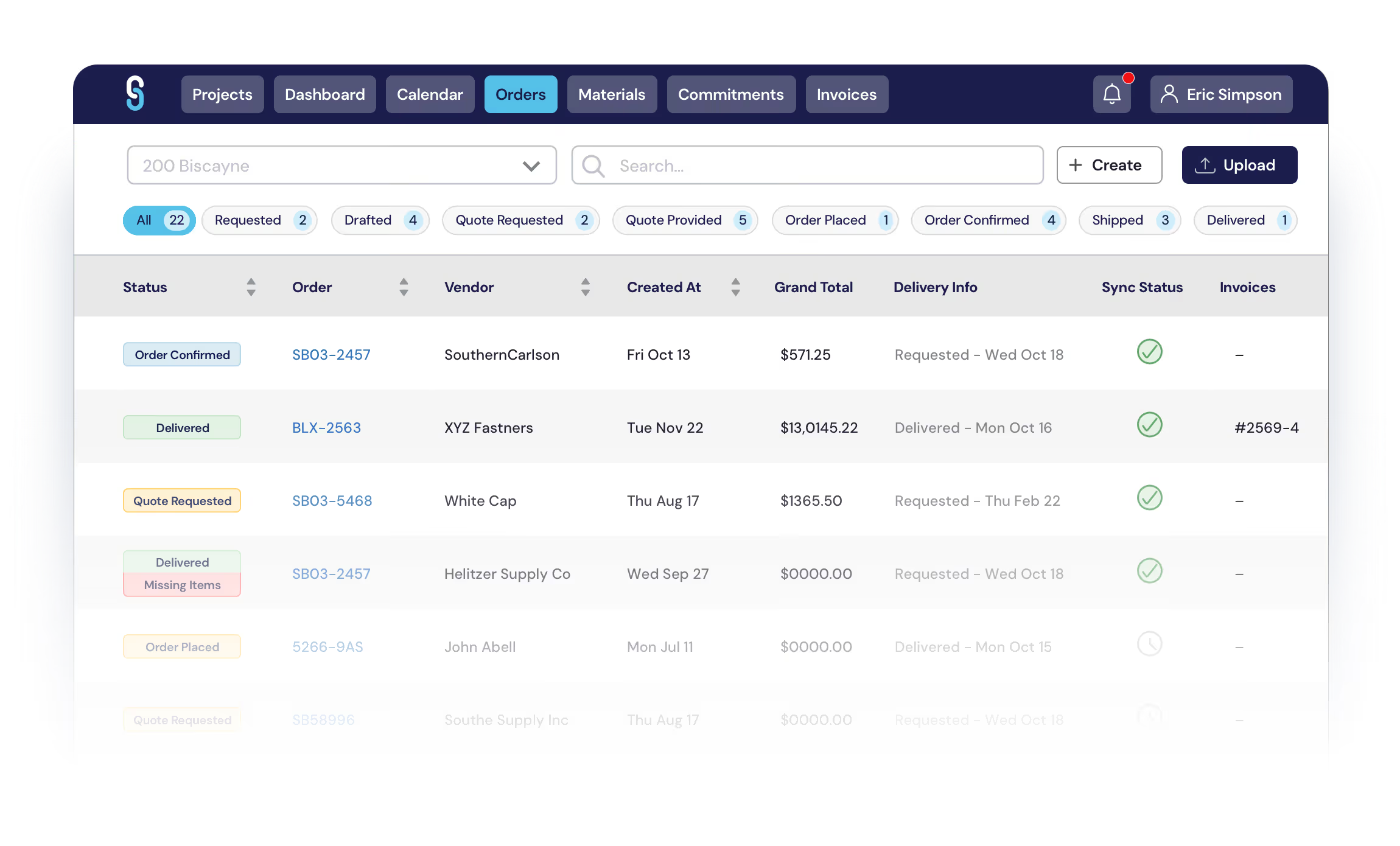
The other place visual design matters is at the point of action. When a field crew member confirms a delivery in the app, they need to know the system received it. A clear confirmation state — a status badge that flips, a brief on-screen message, the order moving to a different column — closes the loop. Without it, users aren't sure if the tap registered. They tap again. Now there are two confirmations on the same delivery, and the office is trying to figure out what happened.
Real-time feedback also matters on the office side. When the field confirms a delivery, the office should see it immediately — not at end of day, not after a sync, immediately. That visibility is what eliminates the check-in call. The super doesn't need to call to say the materials arrived because the platform already told the purchasing manager the moment the field confirmed it.
This is the practical value of a well-designed procurement interface: fewer calls, fewer errors, fewer exceptions that require manual recovery. The technology works the way it was supposed to when the visual design makes it fast and unambiguous to use.
Book a demo to see how SubBase is built for the field: https://www.subbase.io/subbase-demo


Stay in touch
Sign up for our monthly newsletter to receive exclusive company updates, learn about industry trends and find out where we will be next. Don't miss out – subscribe today!

